
Several screenshots in one 3D shot
Updated November 2026 · by Daniel Petrevski, maker of Perspecto
Show more than one screen of your product at once. Add up to four more screenshots to yours and pick a scene: fanned out around it, stacked one behind another, or floating at different depths. Each screen is a thin glass card with real edges, and the whole scene turns in 3D.
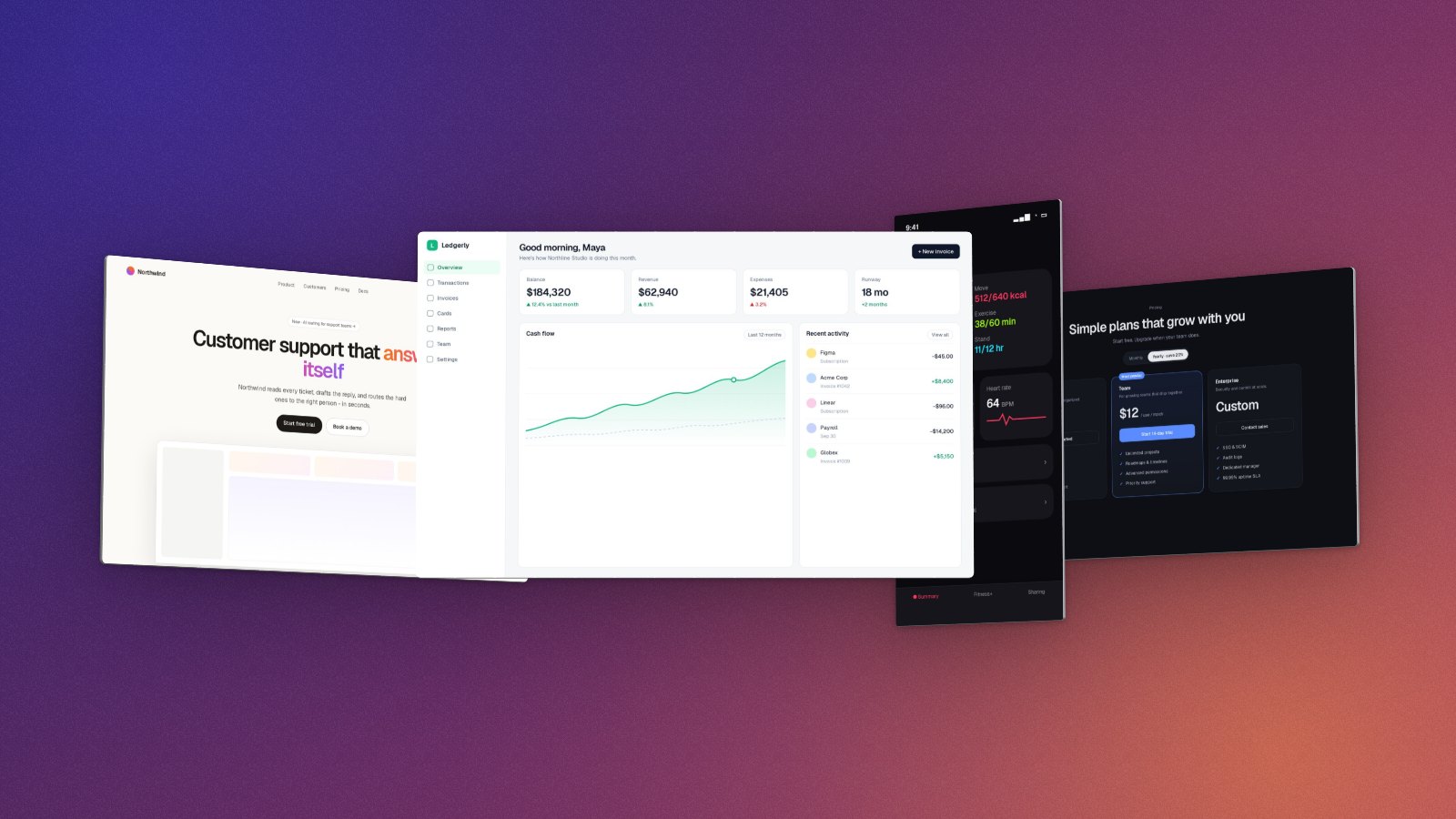
In short: Open perspecto.io, upload your main screenshot, click Add more images in the Style tab and pick up to four more. Then choose Fan, Stack or Float. Drag to turn the scene. Scenes are free to try; exporting one needs Pro ($19 once).
How to put several screenshots in one 3D mockup
- Upload your main screenshot. Go to perspecto.io and choose the screen you want in front. It stays the hero of the scene.
- Add more images. In the Style tab, under Frame, click Add more images and pick up to four more. You can choose several files at once.
- Pick a layout. Row puts them side by side, flat. Fan, Stack and Float make a scene in 3D, each with a good starting angle.
- Turn it and export. Drag the canvas or use the Angle tab to turn the whole scene, set rounded corners and a background, then export PNG, MP4, GIF or HTML (Pro).

Three scenes
- Fan puts your main screenshot in front and fans the others out on both sides, turned towards it. Good for a hero image with a few key screens.
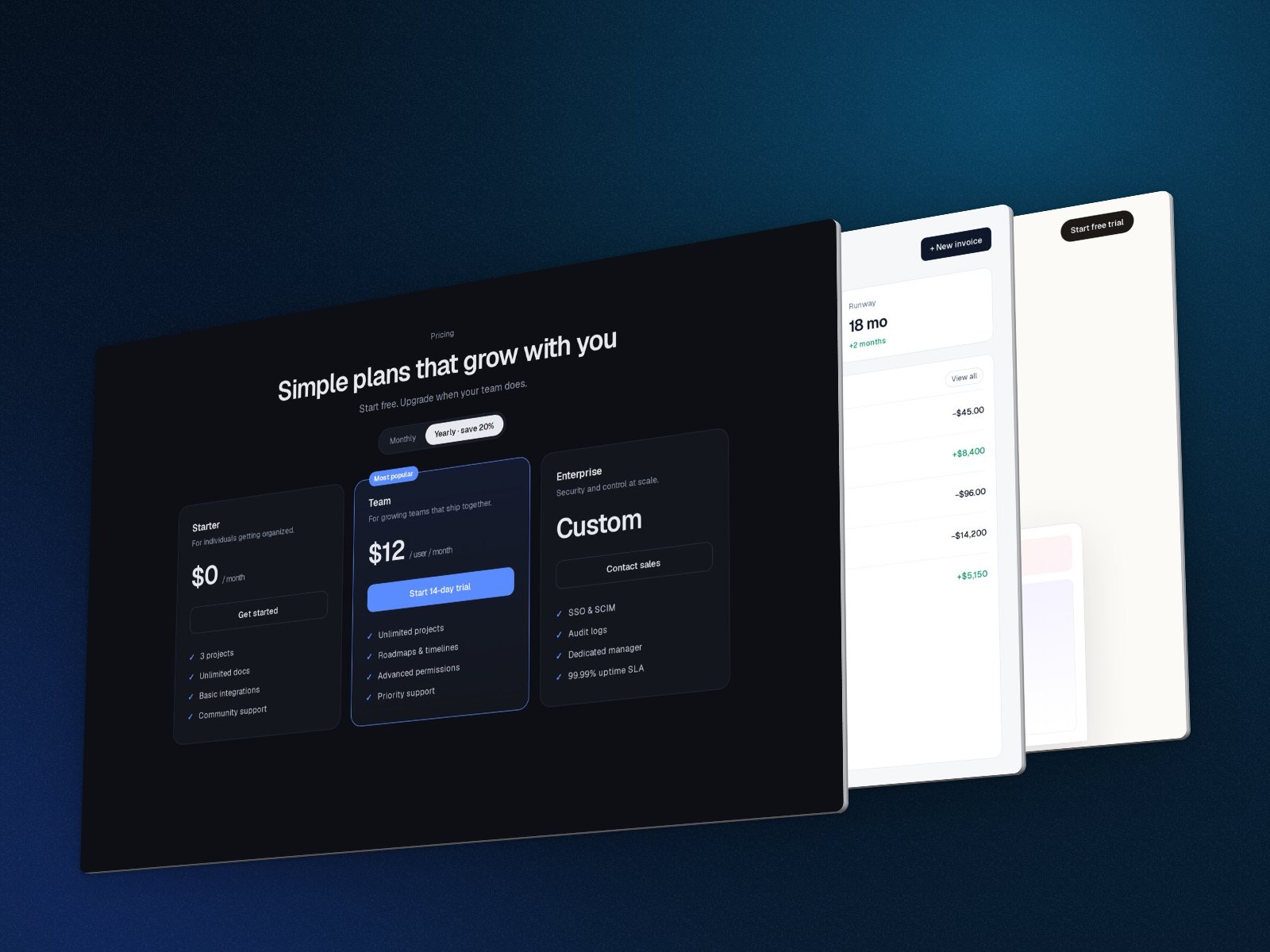
- Stack lines them up one behind another, like cards seen from the side. Good for showing the pages of one product.
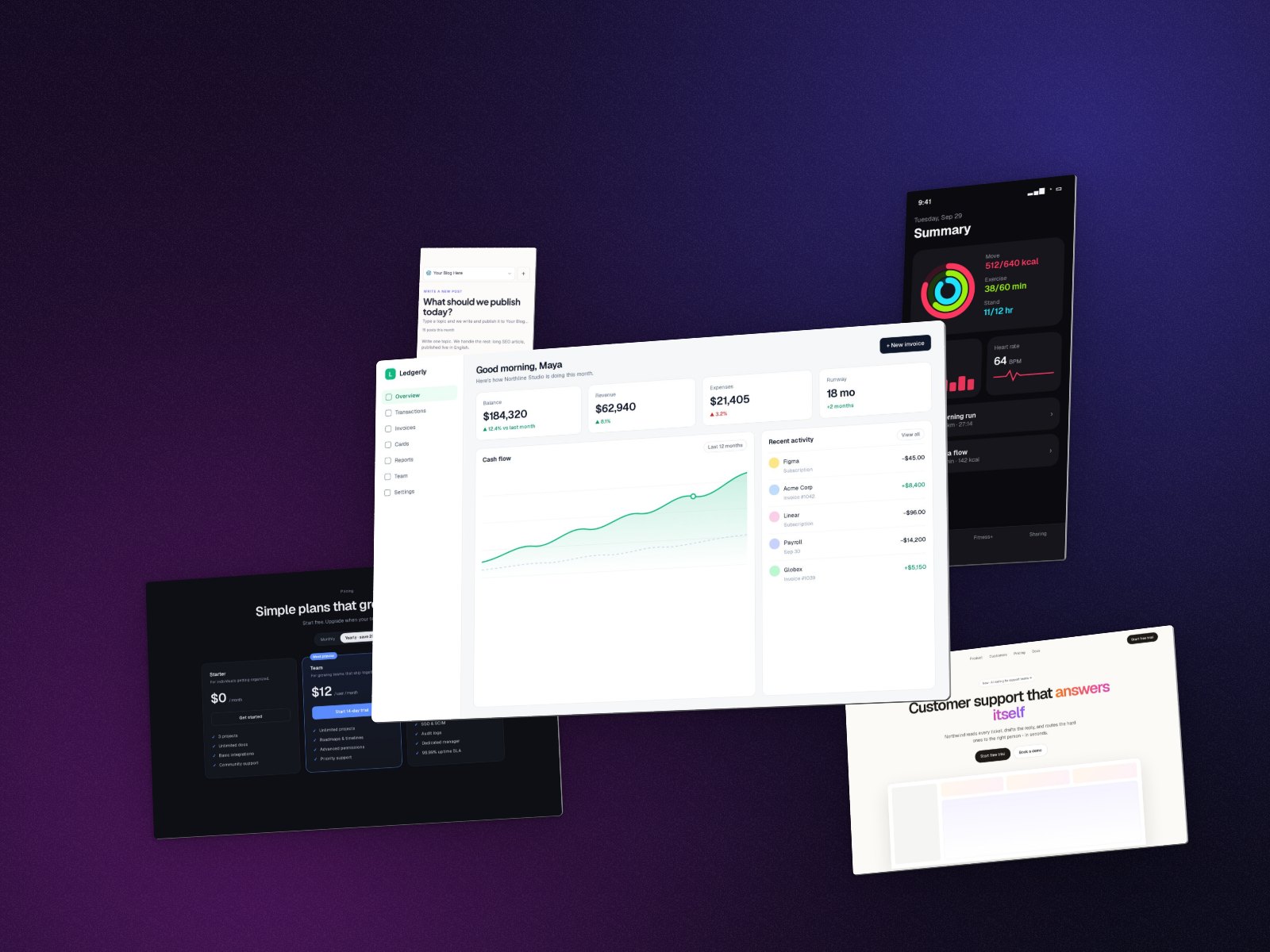
- Float spreads them around your main screenshot at different depths and heights, each turned a little. Good for a busy, lively hero.
Made to look real
Each screen is a thin sheet of glass with a polished edge that catches the light, drawn in the right order from any angle, so a card in front always covers the one behind it. One soft shadow falls under the whole scene. Screens keep their true colours as they turn, like a lit display.
Screenshots of different shapes are sized to sit well together: a phone screenshot next to a desktop one comes out a little taller, not tiny. A window screenshot with a see-through shadow round it (like a macOS window capture) is trimmed to the window first.
The editor shows exactly what you'll export: PNG, GIF, MP4 and HTML draw the same scene.
Good to know
- Your images stay in your browser. Nothing is uploaded.
- Row, the flat side-by-side layout, is free with up to five images. Fan, Stack and Float are free to try in the editor; exporting them needs Pro.
- Device frames, Layer depth and the shape effects (Curved Screen, Wave and the rest) work on single images and Row, not on scenes.
- For a laptop and a phone in real devices, use Row with a device: see laptop and phone mockups.
Questions
How do I put several screenshots in one mockup?
Upload one screenshot, click Add more images in the Style tab and pick up to four more. Choose Row to show them side by side, or Fan, Stack or Float for a 3D scene.
How many screens can one scene have?
Two to five: your main screenshot and up to four more.
Is it free?
Row (side by side) is free, with 3 PNG exports a day and no watermark. Fan, Stack and Float are free to try in the editor; exporting them needs Pro, $19 once.
Can I mix phone and desktop screenshots?
Yes. Each card keeps the shape of its screenshot, and sizes are balanced so a phone screen sits well next to a desktop page.